Selecting Maps
After downloading one or more maps, you need to select which maps are active.
Select a Single Map
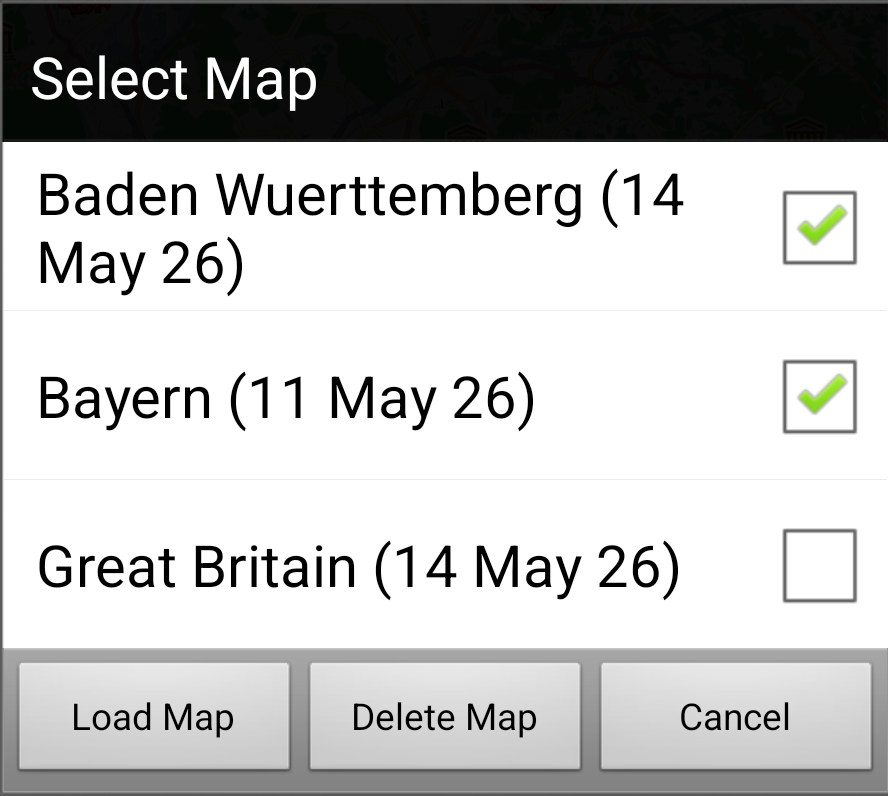
- Tap ☰ Menu → Set Active Map
- A list shows all downloaded maps
- Tap a map to activate it
The selected map loads immediately.
Multiple Simultaneous Maps
You can display multiple maps at the same time. This is useful when flying near a boundary between two regional maps (e.g., flying from Bavaria into Thuringia).
To select multiple maps, enable the multi-map option in the map selection dialog. Each selected map renders its coverage area, and where maps overlap the topmost is shown.
Warning
Loading multiple large maps uses significantly more memory. On older devices, this may cause slowness or crashes. See Performance Tips.
Switching Maps
You can switch active maps at any time during use. The new map loads without interrupting tracking or other operations.