Airspace Display & Filtering

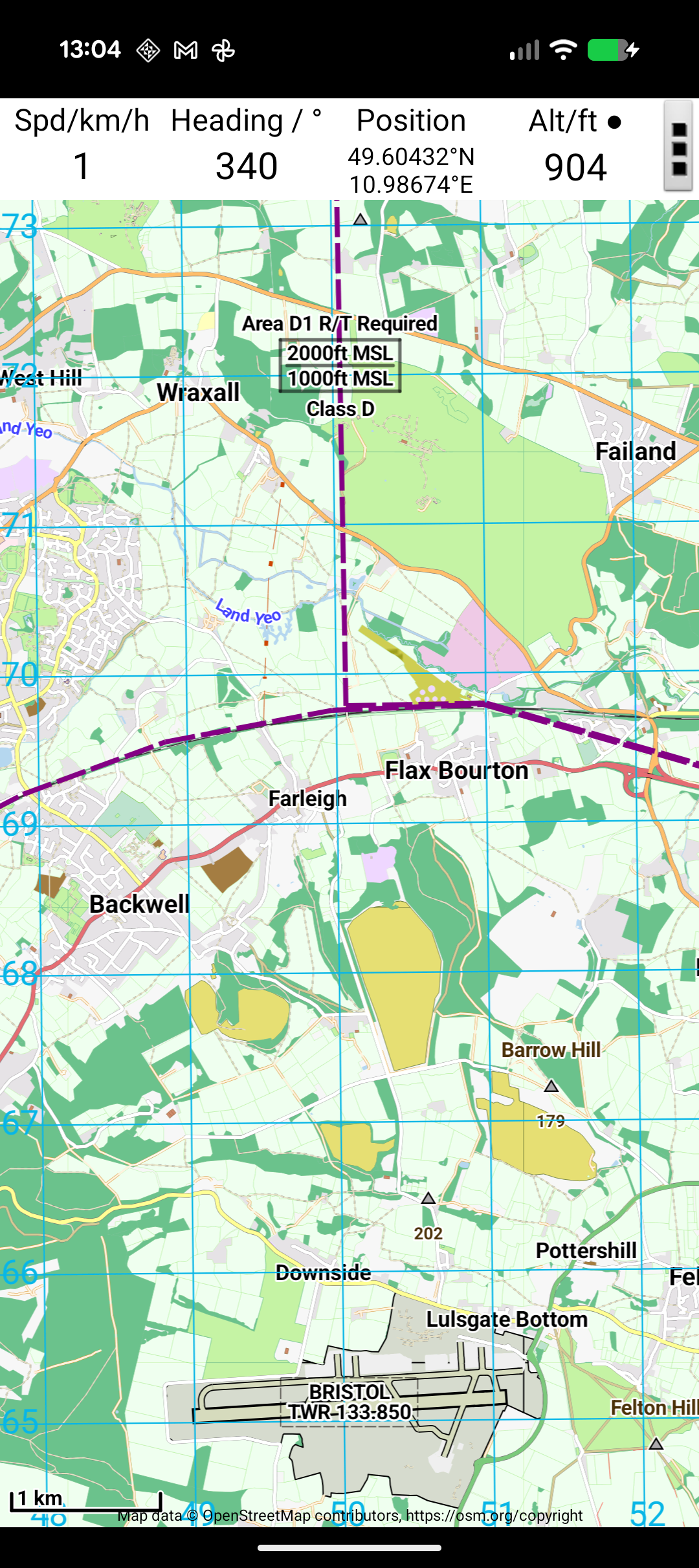
Toggle airspace display using the airspace button in the button bar. Cycles through: airspace with text → airspace without text → airspace hidden.
Height Limit Filter
By default, all airspace up to 10,000 ft is shown. You can change this limit in Settings → Airspace → Maximum Airspace Height. Setting a lower limit reduces clutter by hiding high-level airspace that doesn't affect low-level balloon operations.
Airspace Categories
Airspace is colour-coded by category (Class A through G and special use airspace). The five-colour scheme helps distinguish between:
- Controlled airspace (e.g., Class A, C, D)
- Restricted/prohibited zones
- Danger areas
- Special use areas
- Uncontrolled airspace
Transparent vs Filled
Airspace areas can be displayed as filled (semi-transparent overlay) or as outlines only. Configure this in the settings.
Airspace Information
When airspace text is enabled, boundaries show their designator, class, and vertical limits. This helps you quickly identify what type of airspace you're near and its ceiling/floor.